



Help › Lil Regie features › How do I export my data?
How do I export my data?
There are a variety of ways you can filter booking and attendee data within Lil Regie
There are a variety of ways you can filter booking and attendee data, and you can export all, or any, of that data you’ve captured as a .CSV file. Both the “Who’s Coming” and “Bookings” sections give you the ability to filter what you’re seeing. Here’s how…
Who's Coming
These are the options on the “Who’s Coming” page:

The “Filter by” option allows you to see those attendees who have paid (and those who haven’t), those who have checked in via the Check-in module, or have cancelled their bookings.
The “Eventlet” filter allows you to see just those who are registered for a particular eventlet, or for everything. And if you’ve created “Ticket Types” (e.g. earlybird and standard) or “Attendee Types” (eg student price, members’ price) you can further narrow things down using those categories.
Finally, the "Sort by" category allow you to filter by date, reference, name and organisation.
Bookings
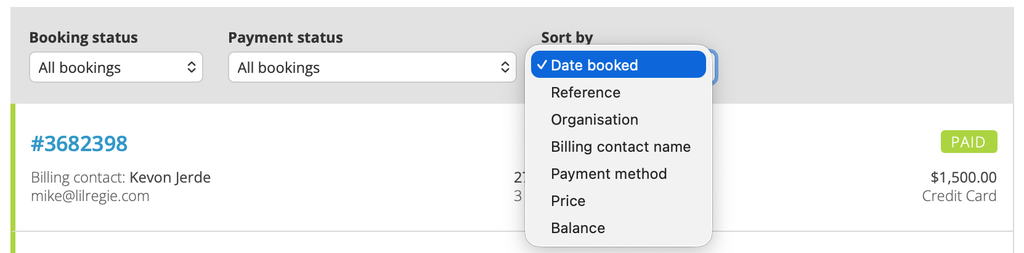
The filter in the “Bookings” section allows you to filter by "Booking status", "Payment status" and to sort in a number of categories.

Here are examples for each.
Booking status

Payment status
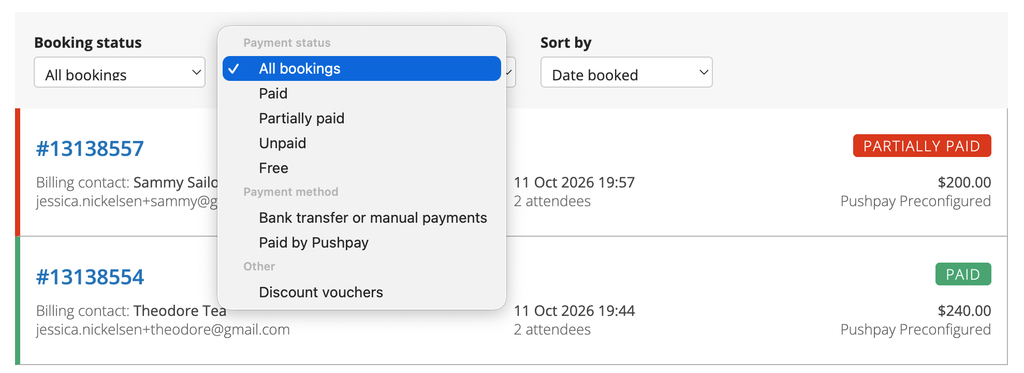
The “Discount vouchers” filter allows to you see only those bookings that have been made via any vouchers you may have created.
Sort by
Exporting your data from the 'Who's Coming' tab
There’s a big “Export as CSV” button on the right hand side of the “Who’s Coming” section.

Any filters that you have already operating will be saved when you look at this page.
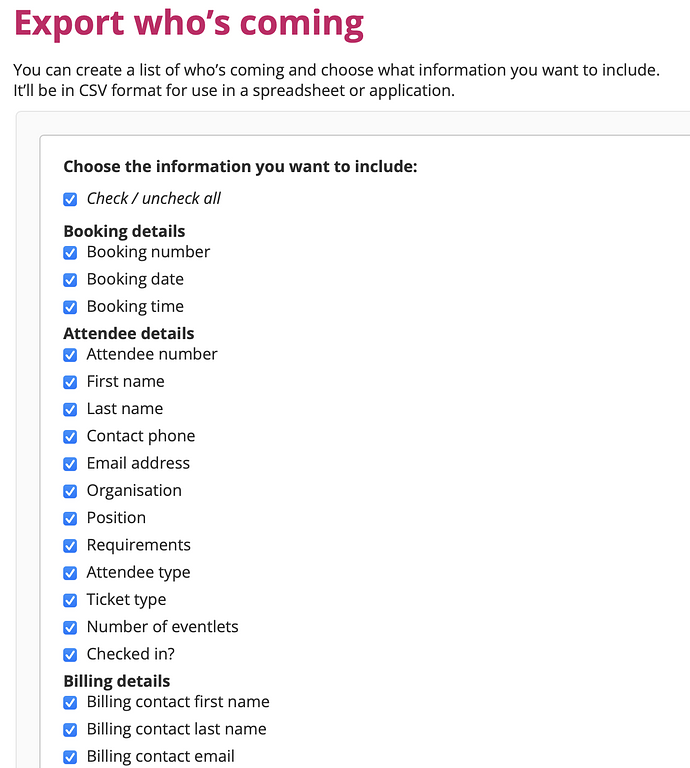
On the “Export” page you have the ability to choose which fields you want to export data from. Every field that’s part of the registration form is shown for you to choose from.
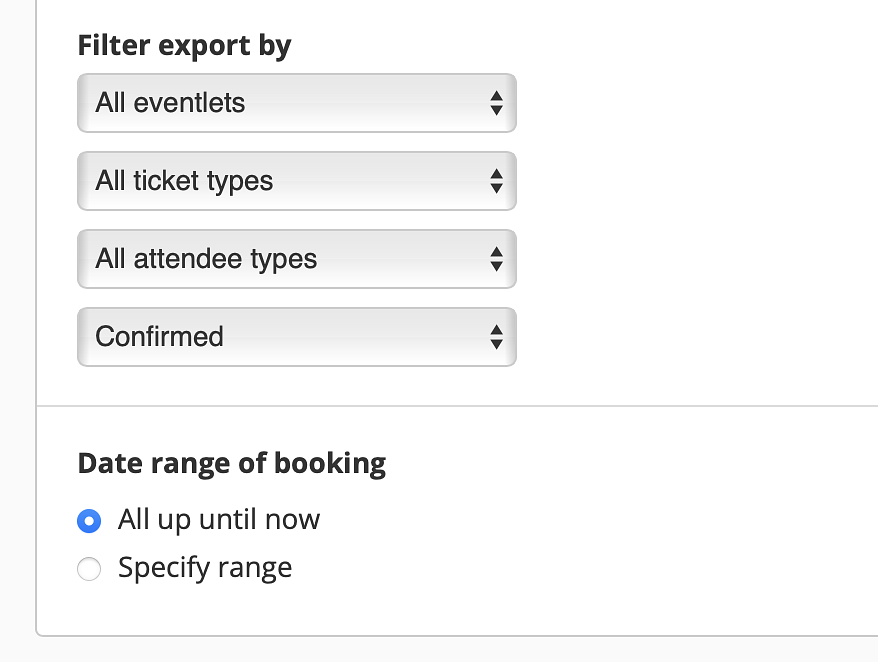
You can also use the filters available and specify a date-range.
Finally, just click the “Export my data” button to export the file to your computer. It will be in .CSV format for use in a spreadsheet or application.
Exporting your data from the 'Bookings' tab
There’s an “Export as CSV” button in the “Booking” section and in addition a "Download invoices" button.

The "Export as CSV" works the same way as for the "Who's Coming" section. Note that the data you export is different though - it's information related to the booking and billing contact, rather than attendees. Although in many cases they will be the same person.
The 'Download invoices' button allows you to download all of the invoices created for the event. You'll be emailed a link to download them as a .zip file.