



Help › Creating your events › Creating a standalone event
Creating a standalone event
Where attendees just register for a single event
We start by asking you a few questions about your event.
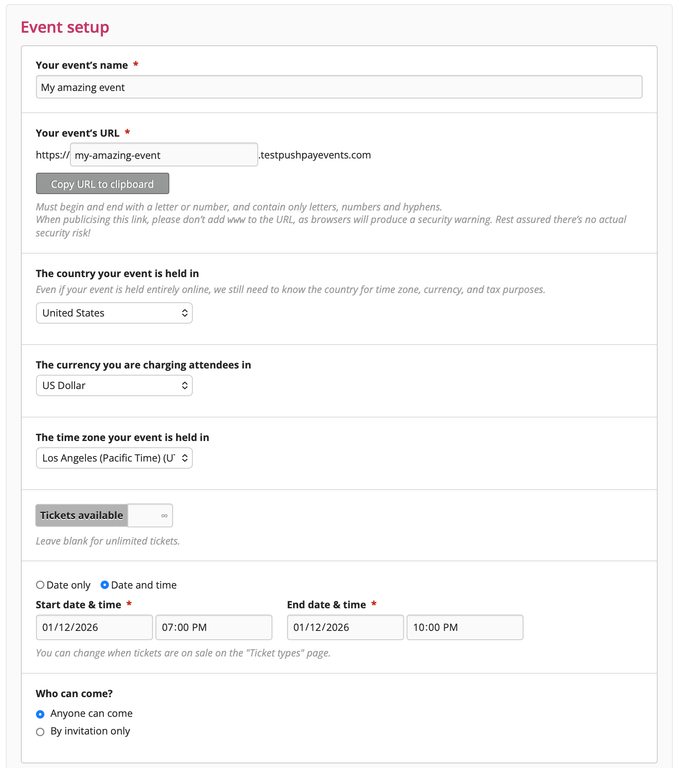
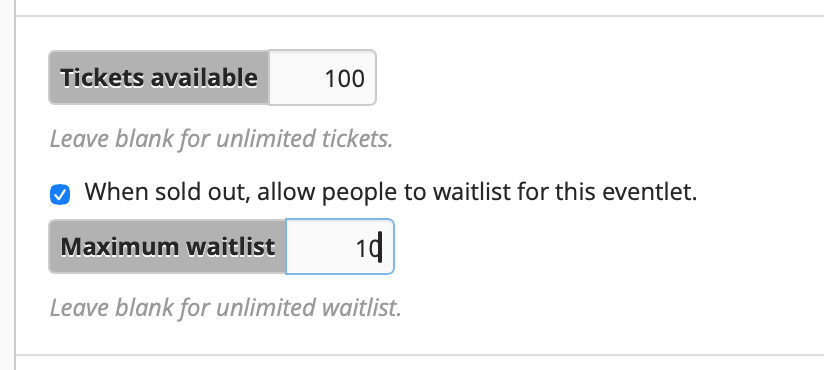
You’ll also need to set the start and finish dates for your event. There’s the ability to set start and finish times also.
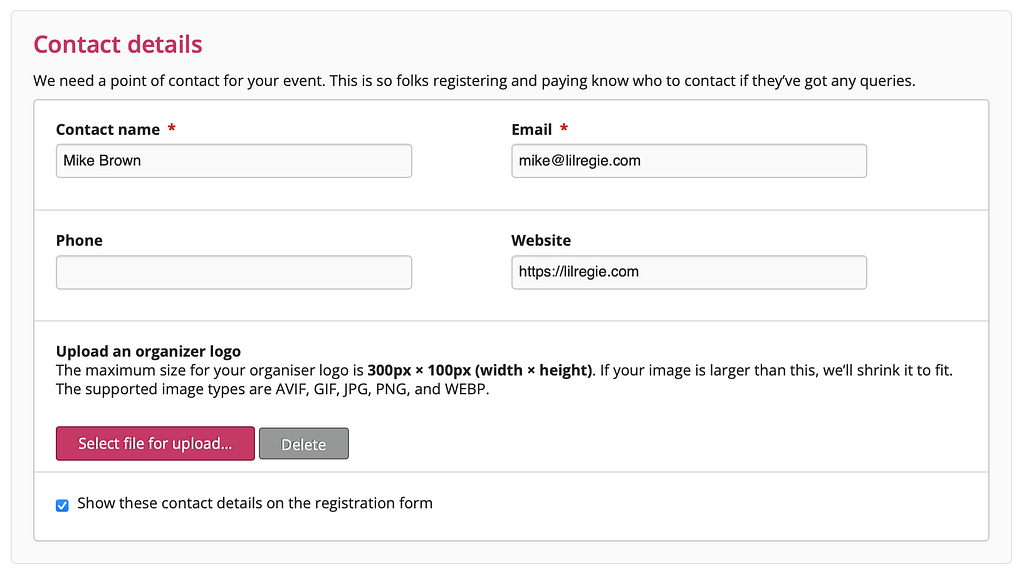
Contact details
Next, add contact name and email, and optionally, phone, website address, and your logo.
Additional details
You have the option to add some more details about your event to appear on the registration form.
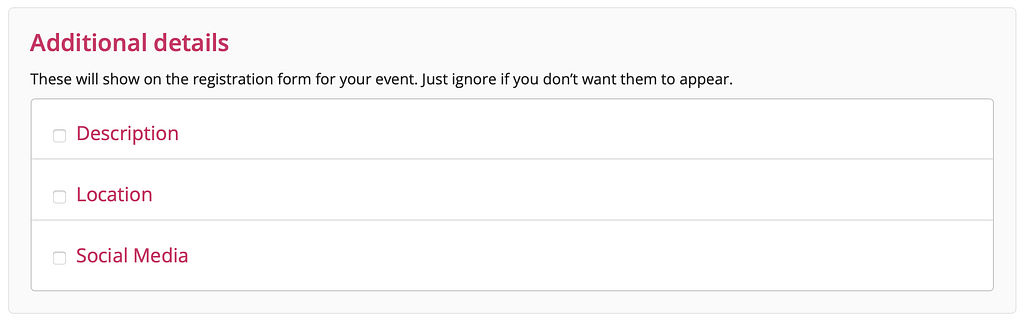
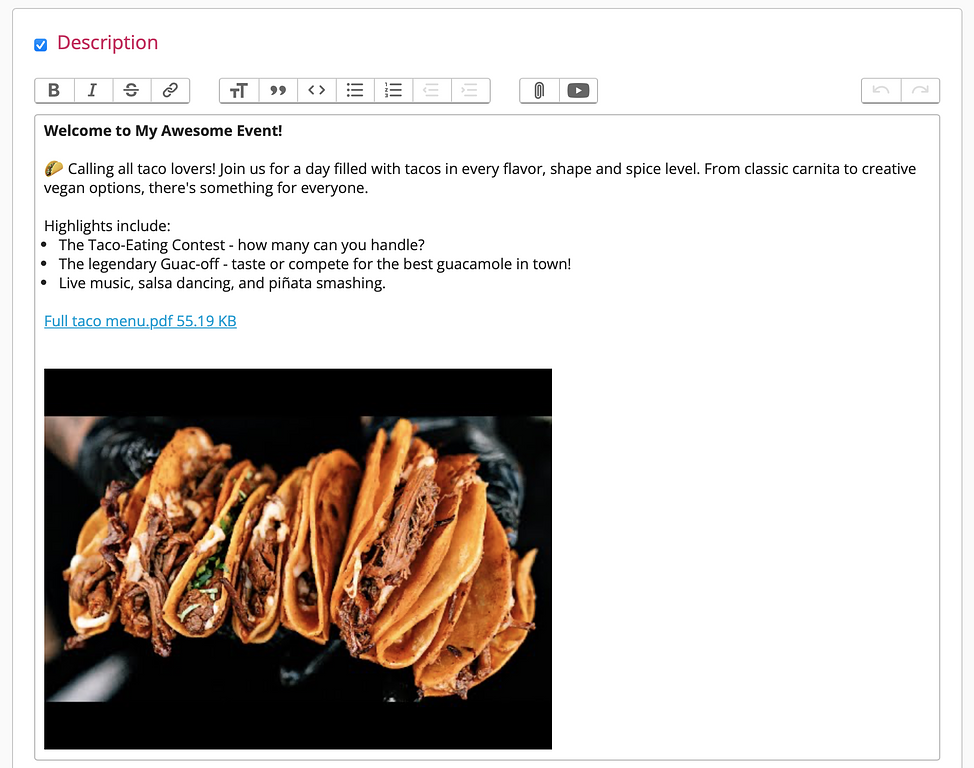
Description
You can format event descriptions using our rich text editor. Format your copy, set headers, add attachments, links and images, and even embed YouTube videos.
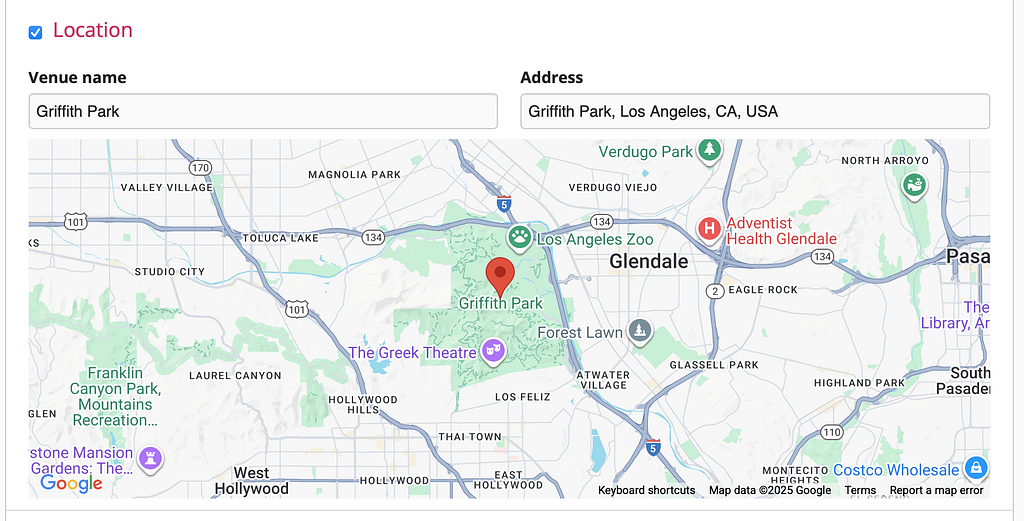
Location
Let people know the venue name and address and show them a map.
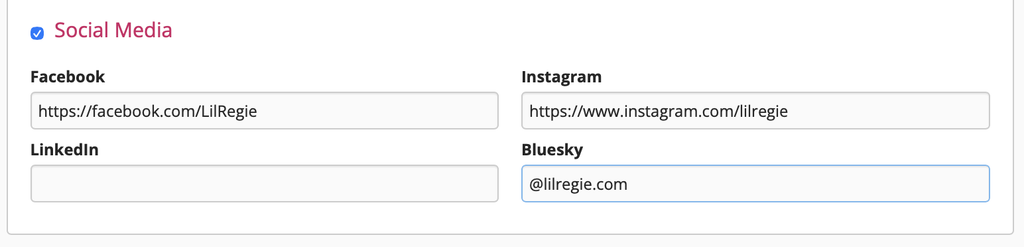
Social media
Finally, you can add links to your social media presence.
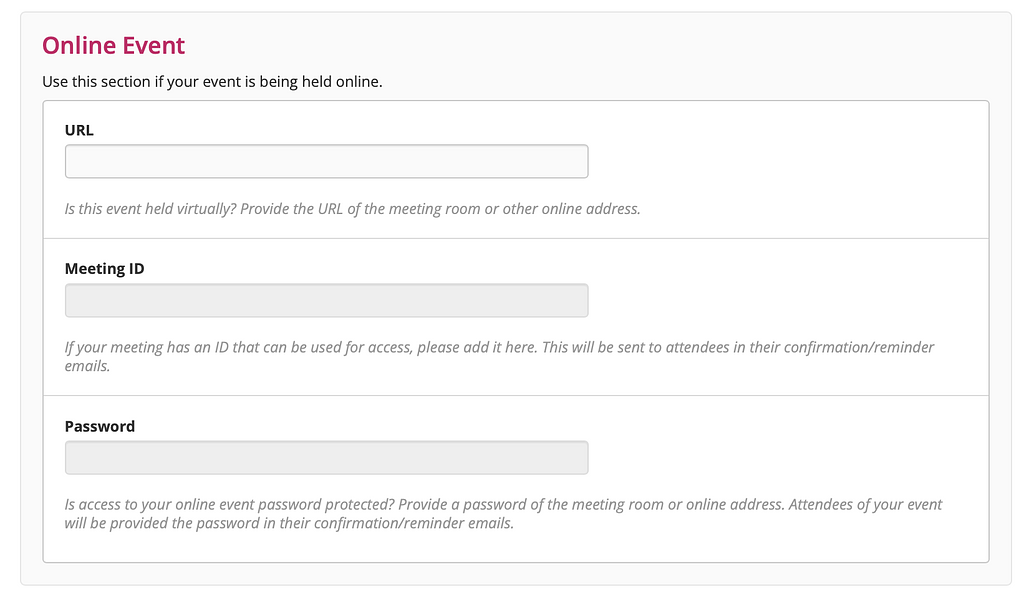
Online events
If you're running an online or streaming event, here's where you can fill in details specifically for those type of events.
How do all of these look on an actual registration form?
Here’s part of our sample registration form with the above details completed.
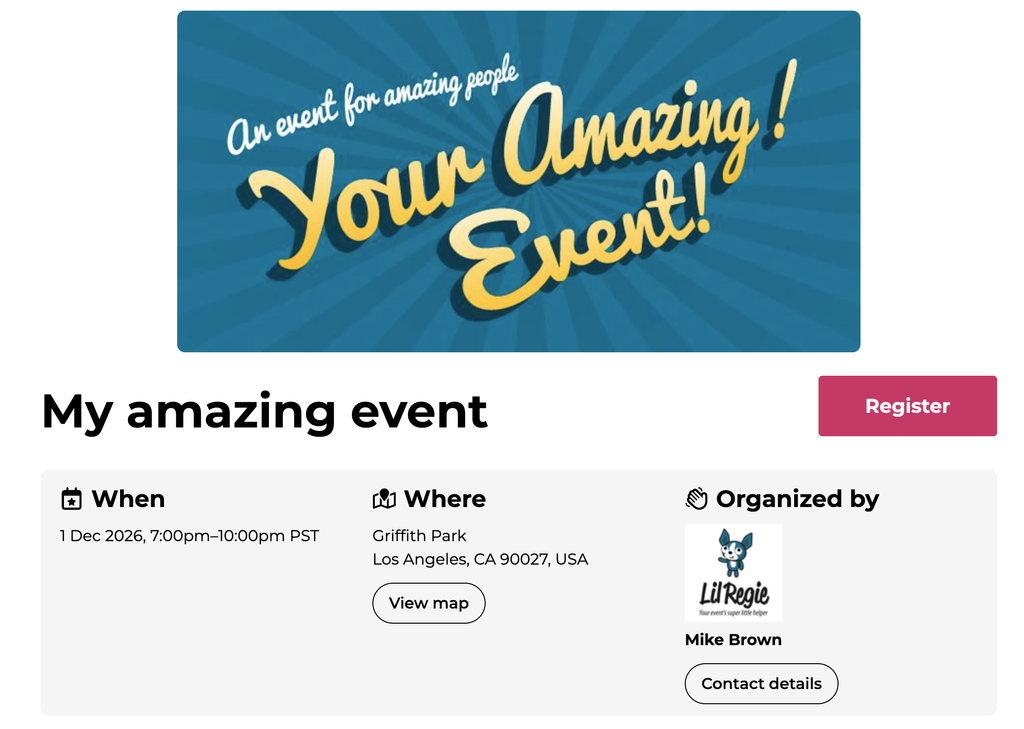
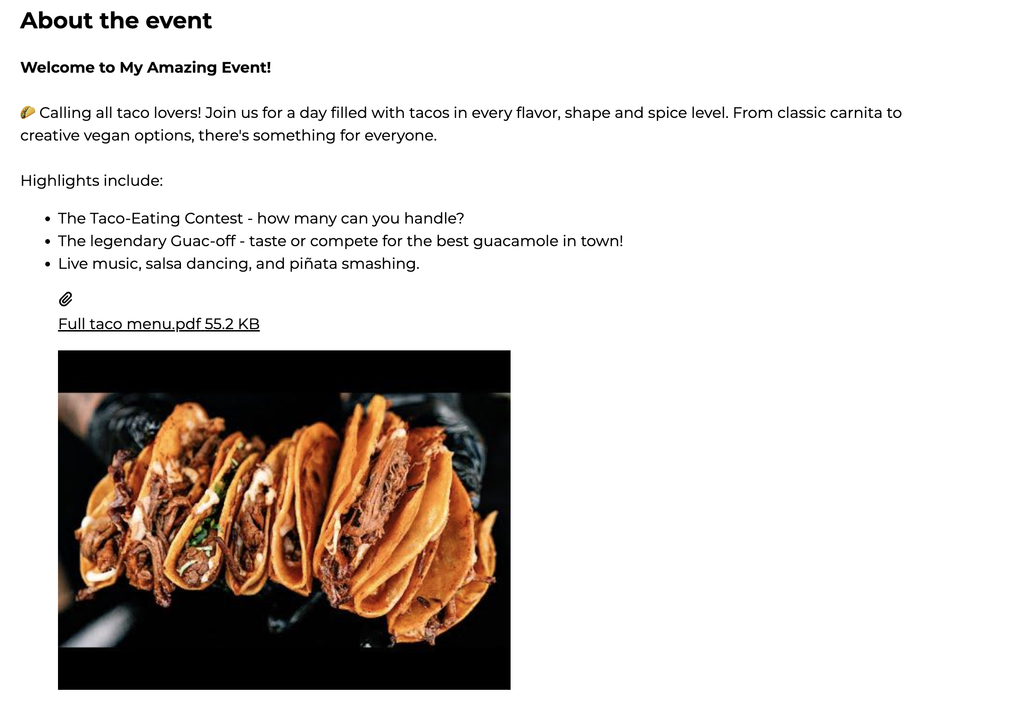
Clicking on the "Register" button will take you to the registration form itself.
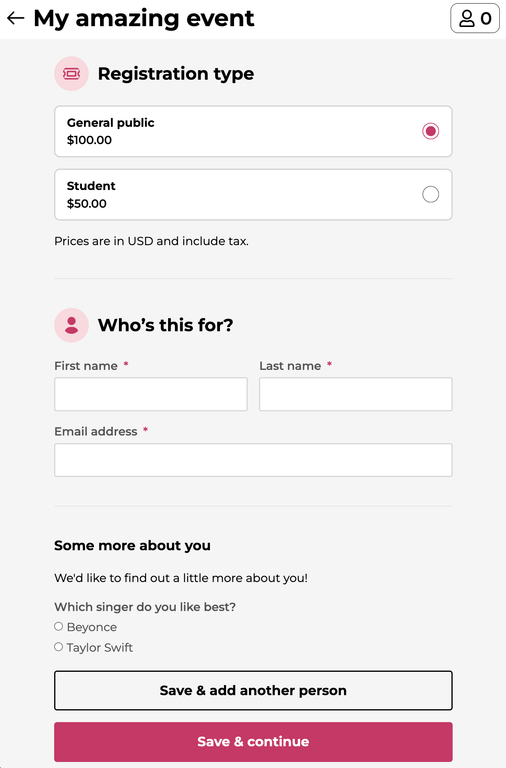
Once you’ve finished this screen, click the "Save and continue" button and you’re ready to choose what sort of tickets you want to sell and their prices!